Navigation


The main application window is composed from various smaller windows and Document Views which are themselves composed of smaller windows. These windows can be dragged and docked in different positions by clicking on the title bar and moving the mouse with the button held down. While dragging, docking guidelines will appear to help you position the window. Windows docked on top of one other will create tabs (5) for you to change between the windows. The application will remember how you have arranged your windows and will restore your settings when the application is restarted. To reset all layouts and window positions to their defaults see the System Settings help topic.
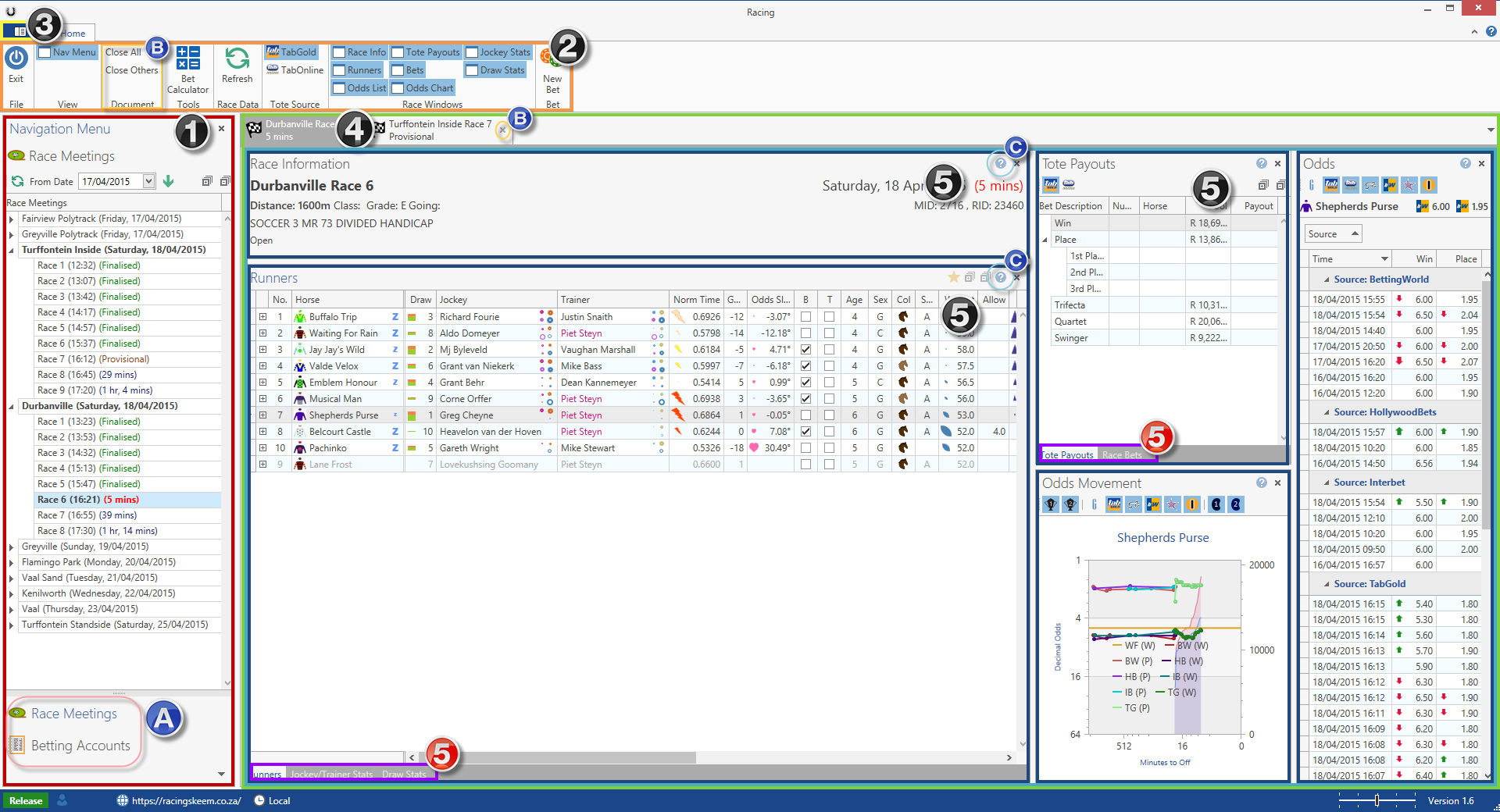
1) Navigation Menu
The Navigation Menu allows you to open Document Views (4) corresponding to a selected item in a list. To open a Document View, click or press Enter on a selected item. To change between available lists select the category (A) at the bottom of the Navigation Menu by clicking on it. You can close the Navigation Menu by clicking on the X in the window title bar and show it again by selecting "Nav Menu" on the Main Toolbar (2).
For more information on the available navigation lists and their functionality please see the Race Meeting List and Accounts List help topics.
2) Main Toolbar
This toolbar provides access to common application functionality as well as Document View specific functionality. When a Document View (4) is selected, controls applicable to that Document will be shown in the toolbar in a separate category. Switching between different types of Document will cause a different set of controls to be shown in the toolbar.
3) System Settings Button
To access the System Settings, click the application control button above the Main Toolbar.
4) Open Documents Tab Control
When a Navigation Menu item is activated, the program will create an appropriate Document View. These appear as tabs above the main window area and you can change between Documents you have previously opened by clicking on the tabs or pressing the key combination "Ctrl+Tab". Whether newly opened Document tabs are placed on the left or the right of existing tabs is determined by the "New Document Tab Side" setting in the System Settings. Documents will remain open until you choose to close them by clicking the X on the tab (B) or choosing Close All/Others on the Main Toolbar (B). Documents open when you close the application will be restored when you restart the application.
Tip: Only keep Documents open that you are currently interested in; many open Documents require processing overhead and will lead to the application slowing down. You can re-open them at any time.
The tab text will display information relevant to the the Document View to aid you in navigating back to the tab you require.
5) Document View Windows
Functionality applicable to the selected Navigation Menu item are contained in Document Views which are opened when clicking or pressing enter on a Navigation Menu item. These views are composed of smaller windows which may be arranged to your liking by resizing and dragging them to different dock positions. If windows are docked on top of one another there will be tabs available to switch between them (5). You can close and re-open windows by clicking on the X in the title bar or selecting the appropriate Main Toolbar (2) "Windows" button. You can access context-sensitive help for a window by clicking on the help icon  in the title bar (C). The arrangement of your windows will be saved and applied to any new Document View of the same type that you open. To reset all layouts please see the System Settings help topic.
For information on specific Document Views available please see the Race Meeting View, Race View, Accounts View and Skeem View help topics.
Created with the Personal Edition of HelpNDoc: Free Kindle producer